Details
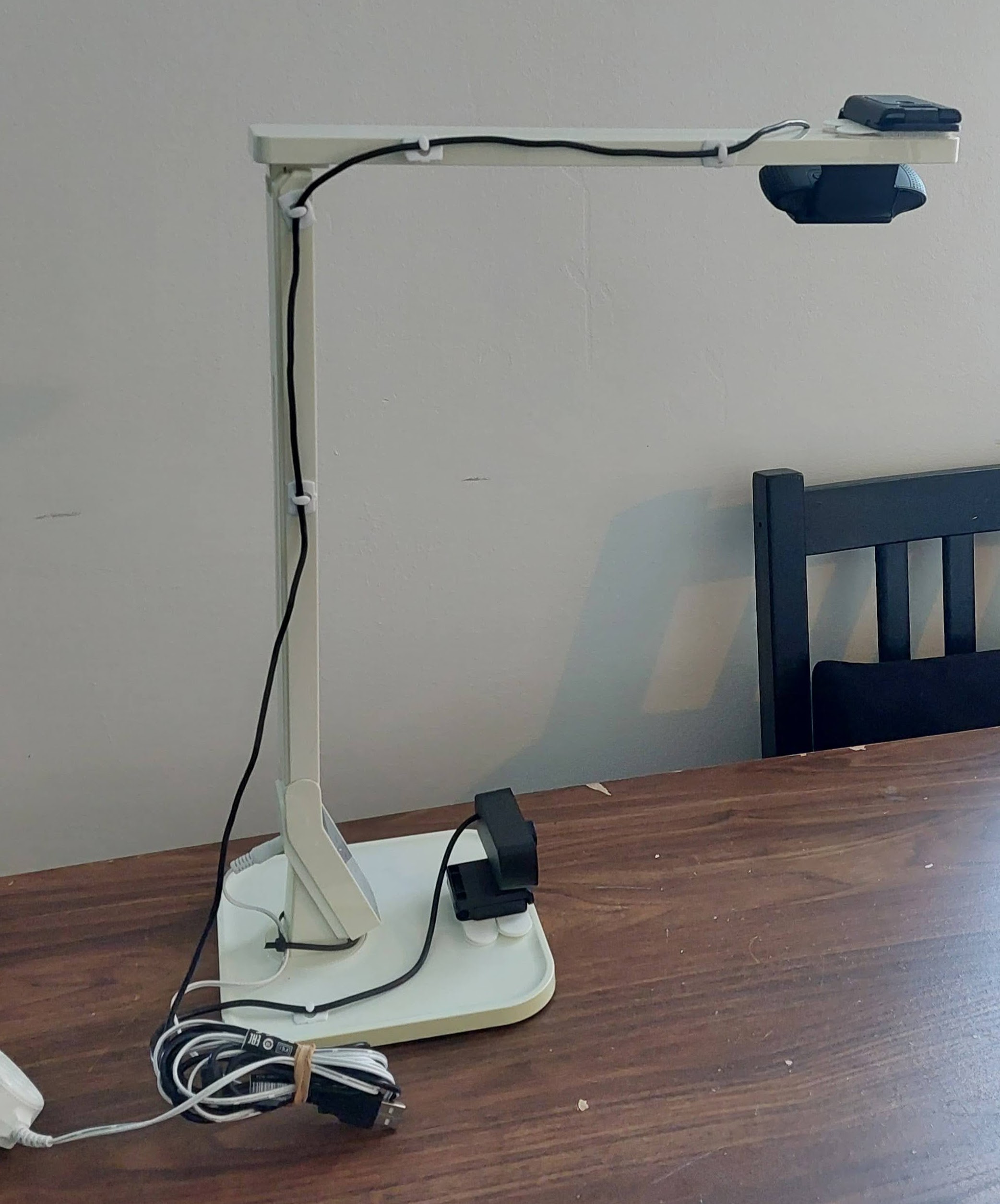
Use this tool in courses and demonstrations to project detailed work onto the projector screen.
Condition Notes
Constructed from an LED lamp and 2 webcams
Induction and Training
No induction required
Maintainers
How To Use
- User your own laptop or one of the Laptops
- Connect to the Projector and screen
- Plug in the webcams
- In Windows, open the camera app
- The top right camera icon allows you to switch between cameras
- Make sure you are in Take Video mode, not camera mode (Camera node will keep drawing a distracting box around objects in view)
If you are also presenting in PowerPoint at the same time, you can’t easily switch between the PowerPoint and the camera - it blanks out for a few seconds every time you switch.
This works:
- Open the contents in Desktop 1
- Create Desktop 2
- Open the camera in Desktop 2
- Use the Windows key with the right and left arrows to switch between PowerPoint and the camera
Risk Assessment
No risks
Maintenance
Keep the power supply and cables with the device
References
eg. instruction manuals, tutorial videos etc.