Details
Condition Notes
Donated by @Brendon_Hatcher 
Induction and Training
Induction Required
Maintainers
How To Use
Before Use
It is expected that members will have prepared a 3D model ready to use; either designed themselves on their own computer, or downloaded from a public repository such as Makerworld. The model data should be in .STL .STEP (or .STP) or .3MF format. The later (3D Manufacturing Format) is Bambu Labs own format and preferred when downloading from Makerworld, since this can also contain printer settings.
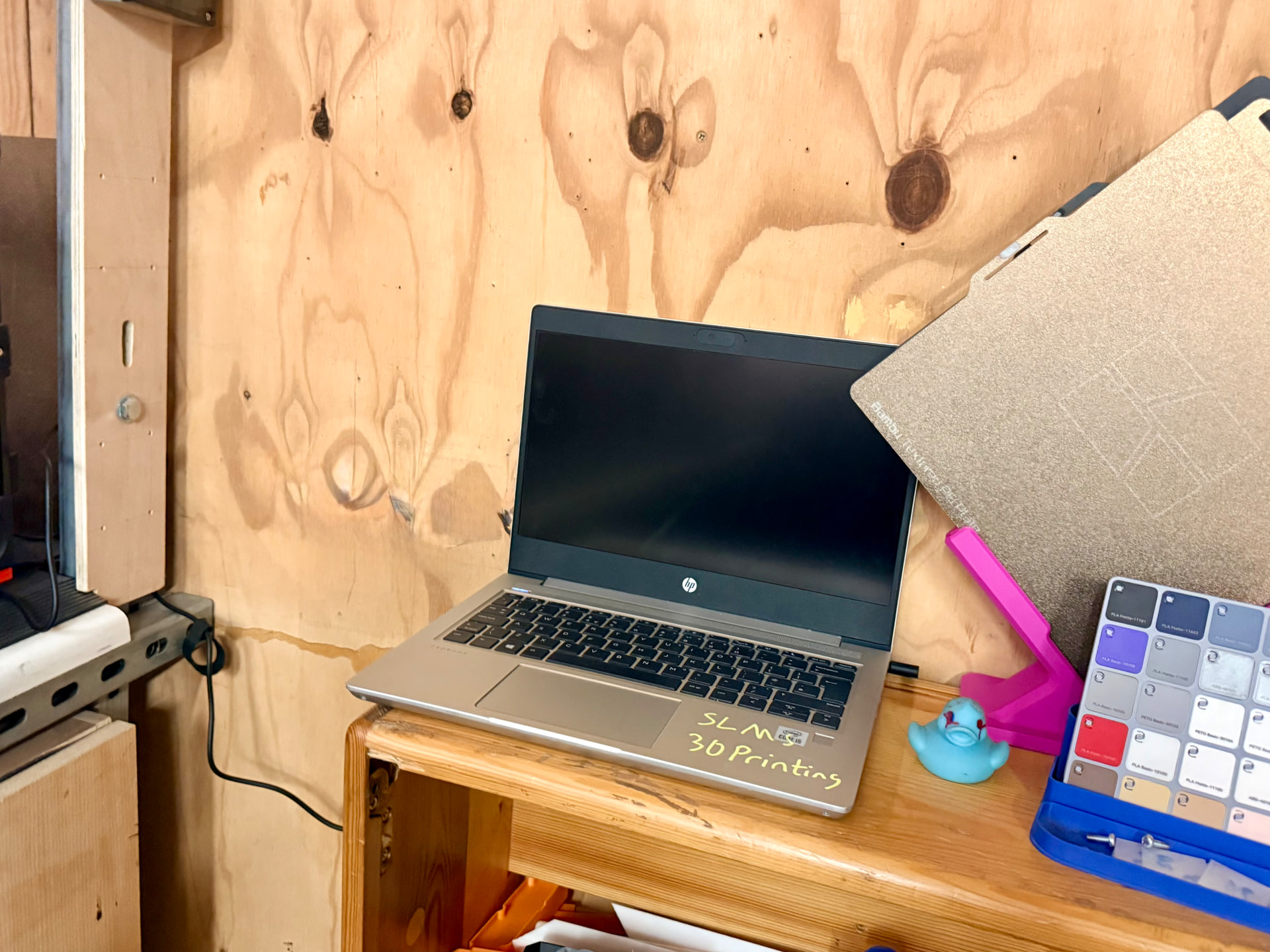
The software on the 3d printer laptop is Bambu Studio. This software is free to Download from Bambu Lab. Registration only requires an email address and agreement to Bambu’s Terms. By installing this on your own computer, some of the preparation can be done away from the 3d printer laptop.
Direct access to the printers from member’s computers is not permitted for privacy reasons. Only 3dtechs and the assigned 3d printer laptop can connect to the printers. Model data must be transferred to the 3d printer laptop by Flash Drive (some are available next to laptop), downloading, or via the shared drive on the SLMS LAN (10.0.4.25). Note Windows machines may need a registry change to enable Samba (SMB) file shares.
During Use
Bambu Studio is set as a persistent program on the laptop. It should always be running, if closed it will re-start automatically. It should also automatically login in with the 3dtech account at startup. Be careful not to log out of this account, or access to the printers will be lost until after a laptop restart.
Workflow [screenshots to follow]:
- Select the Device tab and ensure the correct printer is selected (top left), Robert or Johannes.
- Click the Prepare tab to show a build plate. If a model is already loaded, can you see it printing? If not it is probably safe to clear by clicking File → New Project (or CTRL-N), otherwise as a courtesy ask whether the person printing needs it saving (they should be nearby). As a courtesy, please close your project when you have finished with it.
- Load your model (aka project); for STL and STEP files click File → Import, for 3MF files click File → Open Project.
- Check filaments and build plate; are all the filaments in the AMS shown in Project Filaments (left side), if not click the tiny AMS icon (top of Project Filaments section) to synchronise the filament list from the AMS. Check the correct build plate is selected (large button top left).
- Model filaments/colours; check the colours are as expected, click the Sync Info button (large button top left). Note STL and STEP files do not contain filament and colour info. For these files, select a colour by clicking the model then number on the keyboard corresponding to the numbered filament shown in the Project Filament list. For 3MF files the model may already be coloured.
- Orient the model on the build plate; for 3MF files this is probably already done, however STP and STEP files may need to be orientated using tools on the Tool Bar above the model, there is also an auto arrange button
- Optimise the print settings; at a minimum load a preset from the System Presets dropdown menu (mid left side), e.g. Standard, Strength, Draft (high speed). For PLA filament this is probably sufficient.
- Further optimisation; consider whether extra bed adhesion is required (add a brim), extra nozzle cleaning (add a skirt), support, also consider whether seems are conspicuous and need to be moved or randomised. Ask for guidance if unsure.
- Slice the project (button top right); this will automatically move the viewport to the Preview Tab, make a note of the total filament used weight as this will have to be paid for through the SLMS shop. Move the layer slider (right side) and check the model has been sliced as expected. If support was selected (or Auto), is support showing as expected.
- Print; does the model preview look as expected, give the printer one more check. If OK click Print plate (button top right). Studio will automatically switch to the Device Tab.
- Stay by the printer while the first 4 layers are printing, be prepared to stop the printer quickly if it looks wrong or likely to fail, (either from the printer screen or the Device Tab in Studio. Make show you know how to do this quickly quickly.
- After the first 4 layers, check again at least every 20 minutes, more frequently is the project is challenging. Note some filaments are more challenging and model shape is also a factor.
After Use
Close your project in Studio by clicking File → New. If the print was successful, congratulations  remember to pay for the filament using the total amount recorded previously. Note this may be more than the model weight since it will include filament purges. If the print was stopped early due to a failure, weigh the part and associated waste (an electronic scale is nearby) and pay according to that weight.
The laptop may be left on.
Risk Assessment
Reptitive Strain Injury (RSI) - very low.
There is a general risk of RSI when using computer workstations. This could be exacerbated by the limited space for the laptop. However workstation use lasting less than one hour is usually considered to be very low risk. This laptop is only to be used only for model preparation and printing for typically 10-15 minutes at a time. To control this risk the laptop should not be used for more than one hour without a break.
…and Lia has a supply of bubble wrap!
Maintenance
@3dtechs will do software updates randomly.
References
eg. instruction manuals, tutorial videos etc.